 CTRLVC
A clipboard history that never gets lost
CTRLVC runs quietly in the background and keeps a local history of everything you copy. Pin the pieces of text you need, tuck the rest away in a Postponed tab, and paste anything back with a single click in whatever window you're working in.
Windows 10/11 (x64) · self-contained executable · no registry, cloud sync, or telemetry
From copy to paste: four steps
The demo on the right is interactive: hover over an entry and click 📍 or ⏳ to see pinning and postponing in action.
Copying stays untouched
Every Ctrl+C in any application is picked up by CTRLVC in the background — no pop-ups, no extra steps.
History opens next to your cursor
A hotkey (Ctrl+Shift+V by default, fully customizable) opens a compact window right at your cursor with the list of entries. The whole list just scrolls — up to 200 entries, no pagination.
Selecting pastes the entry
Clicking an entry in the quick-pick window pastes its content into whatever window was active before the history opened. The window closes automatically once it loses focus.
Manage entries right there
Every entry has its own controls: 📍 "Pin", ⏳ "Postpone" and 🗑 "Delete" — all available right in the list, no need to open settings.
- Shipping address: 221B Baker Street
- git commit -m "fix: race condition in monitor"
- Invoice number: INV-2026-0914
- Reply to client: request has been received
- SELECT * FROM orders WHERE status = 'new'
- Draft talking points for the report
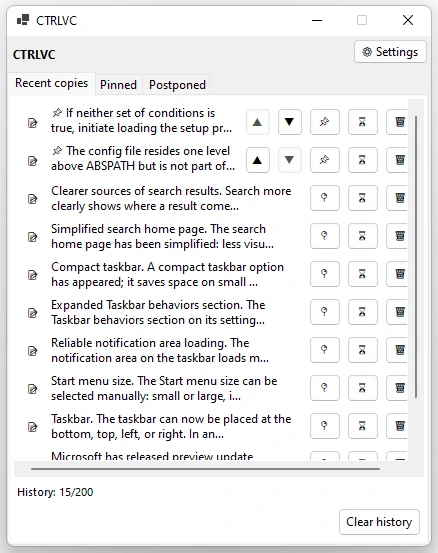
The main feed: pinned entries sit on top in the order you set, followed by everything else from newest to oldest. Postponed entries never show up here.
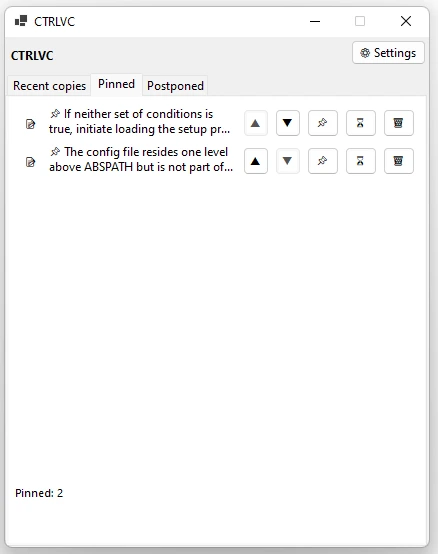
Only entries marked with 📌. They're never removed automatically when the history fills up, and you can reorder them by hand with the ▲ and ▼ arrows.
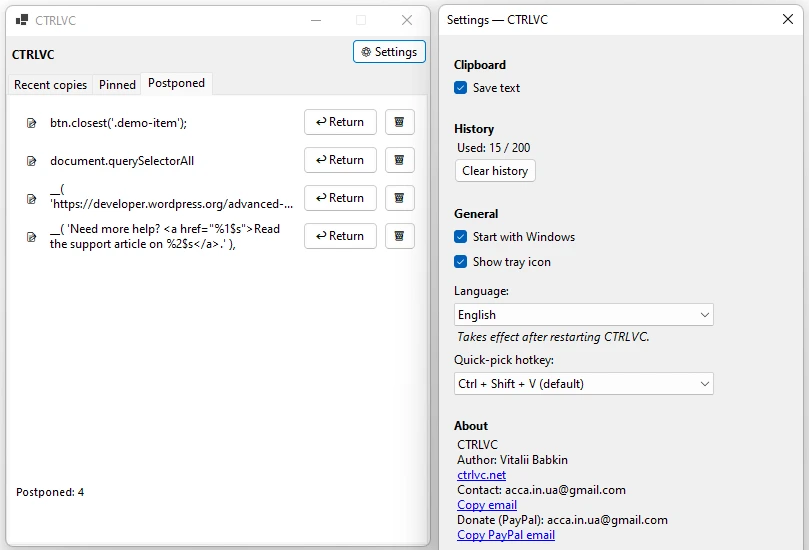
Entries hidden with the ⏳ button. Nothing gets deleted — it just sits in this tab until you hit "Return", at which point it reappears in the main list.
The system clipboard holds one item. CTRLVC holds two hundred
The app sits in the system tray and watches for Windows clipboard changes through the WM_CLIPBOARDUPDATE notification (no polling involved). Standard Ctrl+C and Ctrl+V are never intercepted or altered — CTRLVC just saves a copy of each new text snippet alongside the history you already have.
History of up to 200 entries
Every Ctrl+C adds a new entry to the local history. Once the limit is reached, the oldest unpinned entries go first; pinned items are excluded from automatic cleanup.
Ctrl+V stays untouched
The most recently copied snippet remains the live content of the system clipboard, so a regular paste into any application works exactly as it always has, without CTRLVC in the loop.
Text only
CTRLVC stores text snippets — notes, code, links, addresses, quotes. Images and files are deliberately left out, which keeps the deduplication logic simple and avoids the paste failures that come with them.
Pinned entries never get pushed out
For phrases, addresses, and code snippets you use over and over, there's pinning: the entry moves into a block of the history that's protected from automatic cleanup.
- Pinned entries are never deleted automatically, under any circumstances — even when the history is completely full.
- You set the order of pinned entries by hand: the ▲ and ▼ arrows move an entry within the block.
- Pinned entries appear at the top of the Recent copies tab, and in full on a dedicated Pinned tab.
Postponing isn't deleting
Not every copied entry is needed right away. The ⏳ "Postpone" button takes it out of the main list while keeping its content exactly as it was.
- Postponed entries don't show up in the Recent copies tab and don't get in the way of your current copies.
- They sit in a dedicated Postponed tab for as long as you like.
- The "Return" button puts the entry back in the main list; if it was pinned before being postponed, the pin is restored automatically.
Behavior you can tune
Settings are grouped by purpose: what to save, which combination opens the history, and how the app behaves on the system.
Quick-pick window hotkey
- defaultCtrl + Shift + V
- alternativeCtrl + Alt + V
- alternativeCtrl + Win + V
- alternativeAlt + Shift + V
- alternativeShift + Win + V
- alternativeCtrl + Shift + Alt + V
App options
- Save copied text
- Start with Windows
- Show the system tray icon
- Choose the interface language
- Clear the whole history on demand
What the app looks like
The quick-pick window with recent copies, the Pinned tab, and the settings panel next to Postponed.
One folder, no changes to your system
CTRLVC ships with no installer. Every file it needs sits right next to the executable — move the folder to another drive or computer and the history goes with it.
+-- CTRLVC.exe
+-- config.ini app settings
+-- history.txt copied text history
+-- pinned.txt list of pinned entries
L-- postponed.txt list of postponed entries
No registry, no background syncing
The app never writes to the Windows registry, the %AppData% folder, or any database. The one exception is the optional "Start with Windows" setting, which adds a single entry to the current user's registry autostart key and can be turned off in settings at any time.
Built to survive failures
The storage mechanism is built to handle a sudden shutdown or an interrupted disk write.
- Every new entry is flushed to disk immediately rather than staying only in memory: losing power right after a copy doesn't lose the data.
- History and config files are written using a "temp file, then atomic replace" scheme, so an interrupted write can never leave a corrupted file behind.
- If an outside cause corrupts a single line in the history file, only that one entry is skipped on load — everything else reads back without errors.
Interface in 11 languages
The main interface language is English; ten more are available, including right-to-left support for Arabic.
Technical specifications
Implementation details, for anyone who cares exactly how the app is built.
WM_CLIPBOARDUPDATE system notification via AddClipboardFormatListener; no clipboard polling.RegisterHotKey API; the modifier combination can be changed in settings without re-registering the hotkey at the OS level.history.txt, pinned.txt, postponed.txt, config.ini); special characters and line breaks are escaped per line.File.Replace), with a forced flush to disk.Mutex — launching the executable again never spawns a second copy of the process.HKCU\Software\Microsoft\Windows\CurrentVersion\Run — the only place the app ever touches the registry.System requirements
The app is built as a self-contained executable — no extra components needed on the target machine.
Download CTRLVC
Download the executable and run it from any folder. No extra installation needed — the history starts building from the very first Ctrl+C.